> ## Documentation Index
> Fetch the complete documentation index at: https://docs.vellosim.com/llms.txt
> Use this file to discover all available pages before exploring further.
# Authentication
> Learn how to authenticate your API requests with Vellosim
## API Authentication
Vellosim uses API key authentication to secure all API requests. Your API key identifies your account and authorizes access to the API endpoints.
## Getting Your API Key
Follow these steps to generate your API key:
Create a merchant account at [vellosim.com](https://vellosim.com) and log in to your dashboard
Go to the **Developer** section in your dashboard sidebar
Click the **"Generate API Key"** button
Copy and securely store your API key - it will only be shown once!
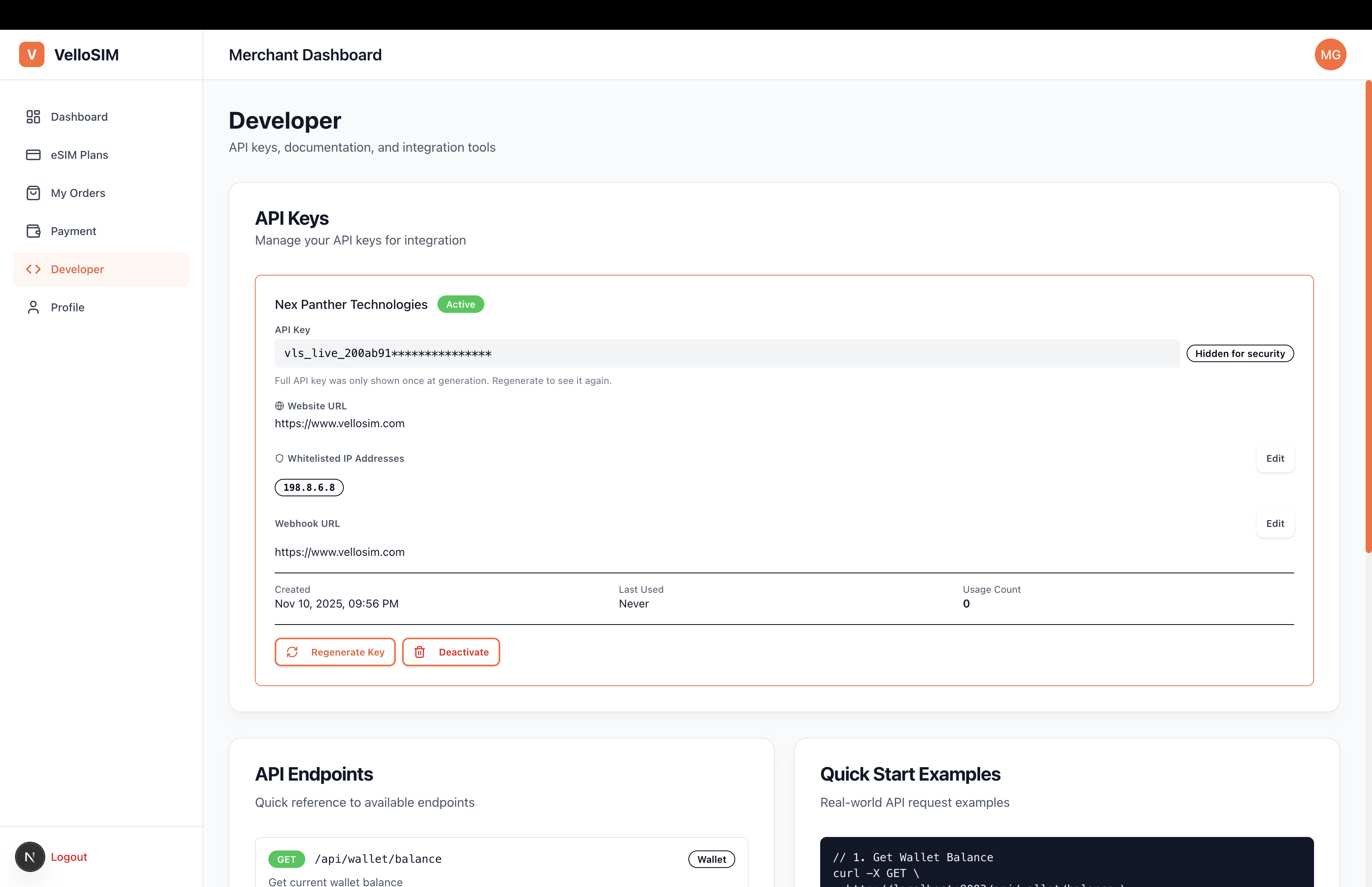 **Keep your API key secure!** Never share it publicly, commit it to version control, or expose it in client-side code.
### Required Information
When generating your API key, you'll need to provide:
* **Company Name** - Your business or organization name
* **Website URL** - Your website (must be accessible)
* **Whitelisted IPs** - IP addresses allowed to use this API key (1-10 addresses)
* **Webhook URL** (Optional) - URL to receive event notifications
## Using Your API Key
Include your API key in the `X-API-Key` header of every request using the API Key format:
```bash theme={null}
X-API-Key: YOUR_API_KEY
```
## Example Requests
```bash cURL theme={null}
curl -X GET "https://api.vellosim.com/api/esim/regions" \
-H "X-API-Key: YOUR_API_KEY" \
-H "Content-Type: application/json"
```
```javascript JavaScript theme={null}
const response = await fetch('https://api.vellosim.com/api/esim/regions', {
method: 'GET',
headers: {
'X-API-Key': `YOUR_API_KEY}`,
'Content-Type': 'application/json'
}
});
const data = await response.json();
```
```python Python theme={null}
import requests
headers = {
'X-API-Key': f' {YOUR_API_KEY}',
'Content-Type': 'application/json'
}
response = requests.get(
'https://api.vellosim.com/api/esim/regions',
headers=headers
)
data = response.json()
```
```php PHP theme={null}
```
## Environment Variables
Store your API key in environment variables to keep it secure:
```bash .env theme={null}
VELLOSIM_API_KEY=your_api_key_here
VELLOSIM_BASE_URL=https://api.vellosim.com
```
```javascript Node.js theme={null}
// Load environment variables
require('dotenv').config();
const apiKey = process.env.VELLOSIM_API_KEY;
const baseUrl = process.env.VELLOSIM_BASE_URL;
```
```python Python theme={null}
import os
from dotenv import load_dotenv
load_dotenv()
api_key = os.getenv('VELLOSIM_API_KEY')
base_url = os.getenv('VELLOSIM_BASE_URL')
```
## Authentication Errors
If authentication fails, you'll receive an error response:
```json theme={null}
{
"error": "Unauthorized",
"message": "Invalid or missing API key",
"statusCode": 401
}
```
Common authentication errors:
| Status Code | Error | Description |
| ----------- | ----------------- | -------------------------------------- |
| 401 | Unauthorized | Missing or invalid API key |
| 403 | Forbidden | Valid key but insufficient permissions |
| 429 | Too Many Requests | Rate limit exceeded |
## Best Practices
Never hardcode your API key in your source code. Always use environment variables or secure configuration management.
Periodically rotate your API keys to maintain security. You can generate new keys from your dashboard.
Use separate API keys for development, staging, and production environments.
Regularly check your API usage in the dashboard to detect any unusual activity.
Only use your API key in server-side applications. Never expose it in client-side JavaScript, mobile apps, or public repositories.
## Rate Limiting
To ensure fair usage and system stability, API requests are rate-limited:
* **Standard Plan**: 100 requests per minute
* **Premium Plan**: 500 requests per minute
* **Enterprise Plan**: Custom limits
Rate limit information is included in response headers:
```http theme={null}
X-RateLimit-Limit: 100
X-RateLimit-Remaining: 95
X-RateLimit-Reset: 1699564800
```
If you need higher rate limits, contact our sales team at [sales@vellosim.com](mailto:sales@vellosim.com) to discuss enterprise options.
## Next Steps
Learn how to structure your API requests
Handle API errors gracefully
**Keep your API key secure!** Never share it publicly, commit it to version control, or expose it in client-side code.
### Required Information
When generating your API key, you'll need to provide:
* **Company Name** - Your business or organization name
* **Website URL** - Your website (must be accessible)
* **Whitelisted IPs** - IP addresses allowed to use this API key (1-10 addresses)
* **Webhook URL** (Optional) - URL to receive event notifications
## Using Your API Key
Include your API key in the `X-API-Key` header of every request using the API Key format:
```bash theme={null}
X-API-Key: YOUR_API_KEY
```
## Example Requests
```bash cURL theme={null}
curl -X GET "https://api.vellosim.com/api/esim/regions" \
-H "X-API-Key: YOUR_API_KEY" \
-H "Content-Type: application/json"
```
```javascript JavaScript theme={null}
const response = await fetch('https://api.vellosim.com/api/esim/regions', {
method: 'GET',
headers: {
'X-API-Key': `YOUR_API_KEY}`,
'Content-Type': 'application/json'
}
});
const data = await response.json();
```
```python Python theme={null}
import requests
headers = {
'X-API-Key': f' {YOUR_API_KEY}',
'Content-Type': 'application/json'
}
response = requests.get(
'https://api.vellosim.com/api/esim/regions',
headers=headers
)
data = response.json()
```
```php PHP theme={null}
```
## Environment Variables
Store your API key in environment variables to keep it secure:
```bash .env theme={null}
VELLOSIM_API_KEY=your_api_key_here
VELLOSIM_BASE_URL=https://api.vellosim.com
```
```javascript Node.js theme={null}
// Load environment variables
require('dotenv').config();
const apiKey = process.env.VELLOSIM_API_KEY;
const baseUrl = process.env.VELLOSIM_BASE_URL;
```
```python Python theme={null}
import os
from dotenv import load_dotenv
load_dotenv()
api_key = os.getenv('VELLOSIM_API_KEY')
base_url = os.getenv('VELLOSIM_BASE_URL')
```
## Authentication Errors
If authentication fails, you'll receive an error response:
```json theme={null}
{
"error": "Unauthorized",
"message": "Invalid or missing API key",
"statusCode": 401
}
```
Common authentication errors:
| Status Code | Error | Description |
| ----------- | ----------------- | -------------------------------------- |
| 401 | Unauthorized | Missing or invalid API key |
| 403 | Forbidden | Valid key but insufficient permissions |
| 429 | Too Many Requests | Rate limit exceeded |
## Best Practices
Never hardcode your API key in your source code. Always use environment variables or secure configuration management.
Periodically rotate your API keys to maintain security. You can generate new keys from your dashboard.
Use separate API keys for development, staging, and production environments.
Regularly check your API usage in the dashboard to detect any unusual activity.
Only use your API key in server-side applications. Never expose it in client-side JavaScript, mobile apps, or public repositories.
## Rate Limiting
To ensure fair usage and system stability, API requests are rate-limited:
* **Standard Plan**: 100 requests per minute
* **Premium Plan**: 500 requests per minute
* **Enterprise Plan**: Custom limits
Rate limit information is included in response headers:
```http theme={null}
X-RateLimit-Limit: 100
X-RateLimit-Remaining: 95
X-RateLimit-Reset: 1699564800
```
If you need higher rate limits, contact our sales team at [sales@vellosim.com](mailto:sales@vellosim.com) to discuss enterprise options.
## Next Steps
Learn how to structure your API requests
Handle API errors gracefully